Centralized Software Deployment
Automating software installation and remote management from a Domain Controller to member servers using PowerShell remoting, administrative shares, and silent installers.
Overview
This lab sets up a centralised software deployment system across a small AD environment — one Domain Controller and two domain-joined workstations (PC1 and PC2).
The goal is to push WinRAR and AnyDesk from the DC to both machines without touching them manually. The script handles everything: checking if the temp folder exists on the client, copying the installers over the admin share, running them silently, then cleaning up.
What it does
- Hosts the installers on the DC under
C:\Remote Install\ - Copies them to
\\hostname\c$\Tempon each target - Runs silent installs remotely via
Invoke-Command - Deletes the installers from the client after installation
Environment
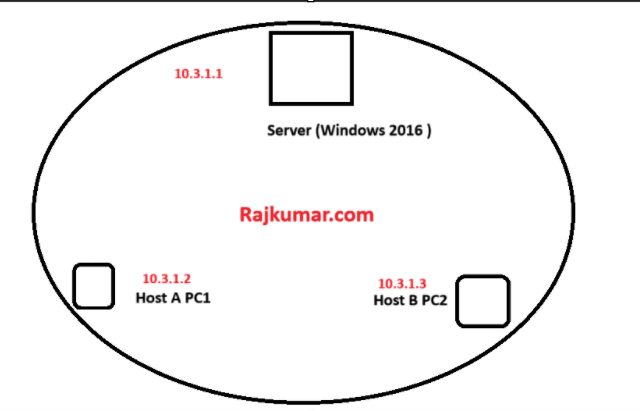
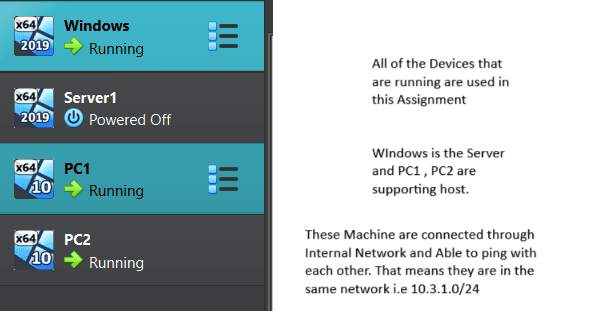 DC acts as the deployment hub. PC1 and PC2 are joined to the
 rajkumar.local domain.
Installers sit on the server at C:\Remote Install\:
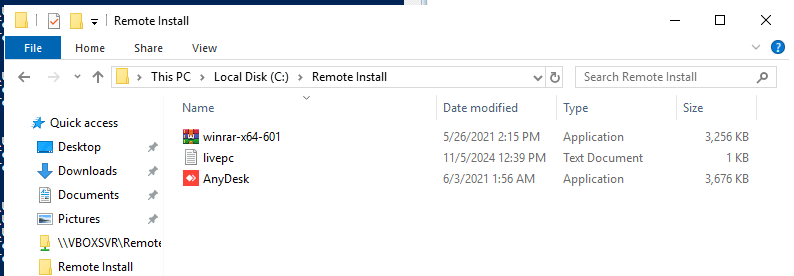
Automated Deployment Script
The PowerShell script reads target hostnames from a text file, checks for the presence of the deployment folder, copies the installation files, and triggers a remote, silent installation.
# central_deployment.ps1
# Read list of target workstations
$HostsList = Get-Content "C:\Remote Install\livepc.txt"

# Installer binaries to deploy
$Folder = "C:\Remote Install\winrar-x64-601.exe", "C:\Remote Install\AnyDesk.exe"

foreach ($Machine in $HostsList) {
    $remotePath = "\\$Machine\c$\Temp"
    $Test = Test-Path -Path $remotePath

    # Check if Temp folder exists on client, if not, create it
    if ($Test -eq $true) {
        Write-Host "Path exists on $Machine. Proceeding with installation."
    } else {
        Write-Host "Path does not exist on $Machine. Creating folder..."
        New-Item -ItemType Directory -Path $remotePath -ErrorAction SilentlyContinue
    }

    # Copy installer packages to client
    Write-Host "Copying files to $remotePath on $Machine..."
    Copy-Item -Path $Folder -Destination $remotePath -Force

    # Trigger remote silent installation and clean up installers
    Write-Host "Starting installation on $Machine..."
    Invoke-Command -ComputerName $Machine -ScriptBlock {
        # Run silent installations
        &cmd.exe /c "C:\Temp\winrar-x64-601.exe /silent"
        &cmd.exe /c "C:\Temp\AnyDesk.exe --install /silent"

        # Clean up temporary installation binaries
        Remove-Item -Path "C:\Temp\winrar-x64-601.exe", "C:\Temp\AnyDesk.exe" -Force -ErrorAction SilentlyContinue
    } -ErrorAction Continue

    Write-Host "Installation complete on $Machine."
}
Deployment Steps
Step 1: Check target machines
Before running the script, check what state the targets are in:
- PC1 already has a
C:\Tempfolder - PC2 doesn't — the script will create it
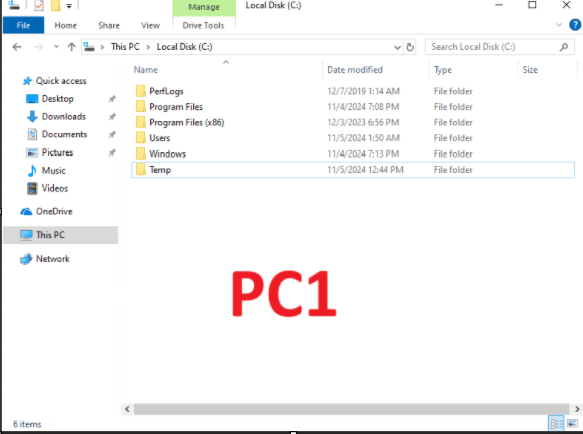 PC1 — Temp folder already exists.
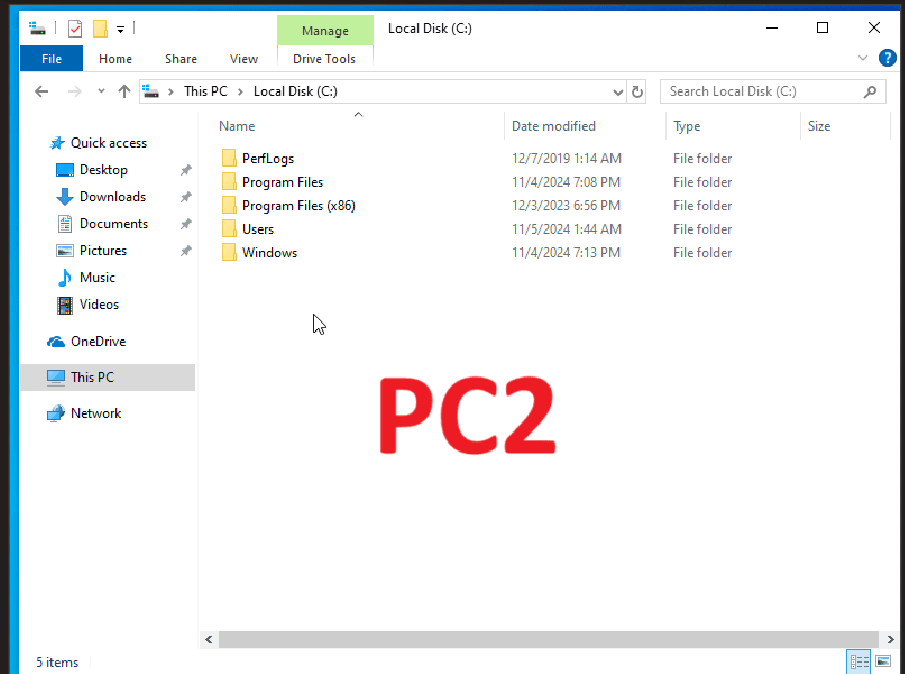 PC2 — no Temp folder yet.
Step 2: Enable WinRM on the targets
WinRM needs to be running on both machines for Invoke-Command to work. Run this on each workstation:
Enable-PSRemoting -Force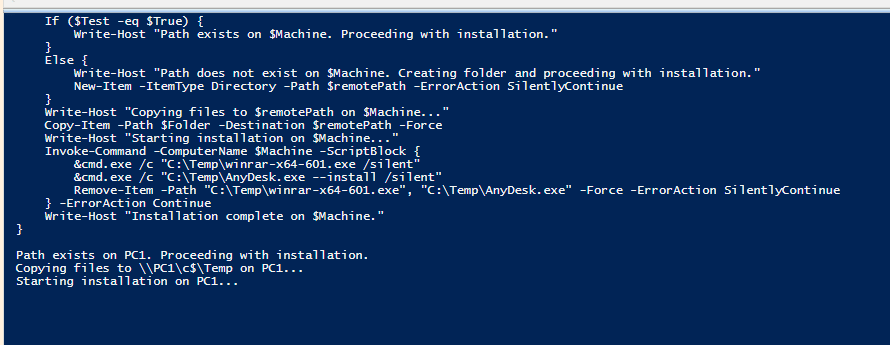
 WinRM service started on the workstations.
Step 3: Run the script
Run the script from the Domain Controller. It connects to each machine, copies the files, installs silently, then removes the installers.
PC1
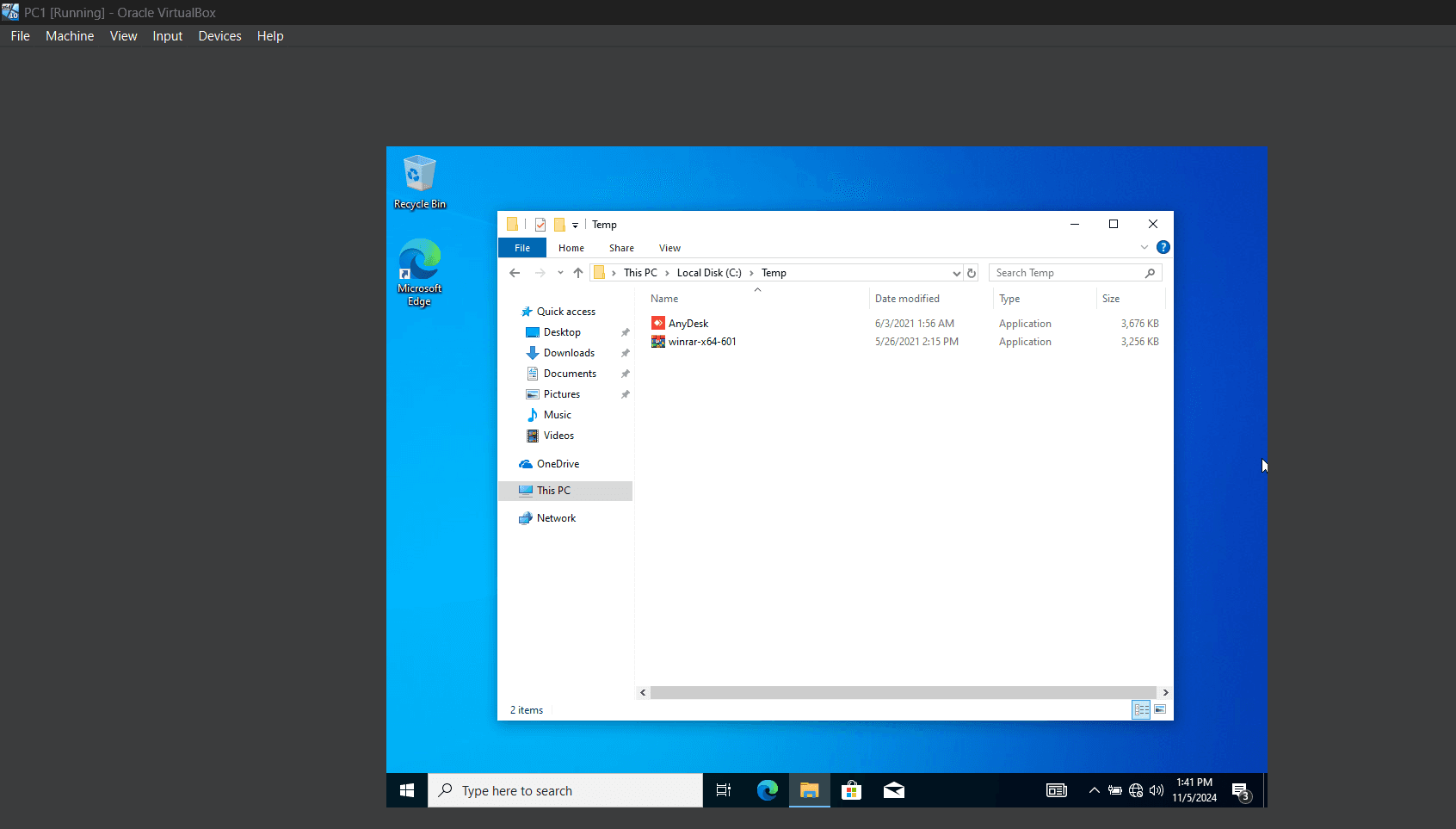
 Files copied, installed silently, and cleaned up on PC1.
PC2
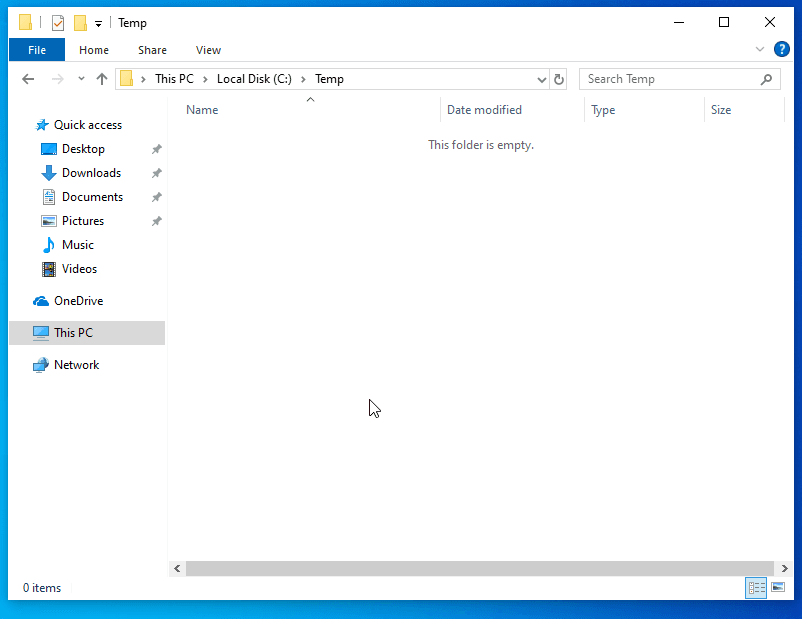
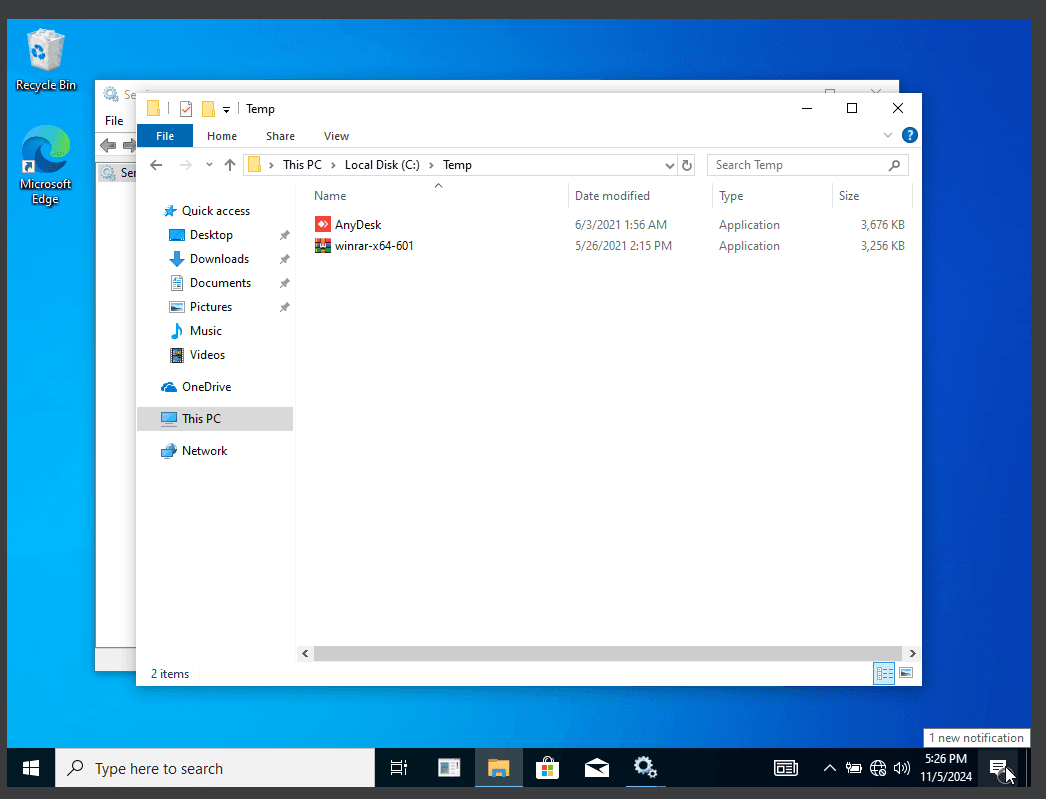 Temp folder created, files deployed, installed, and cleaned up on PC2.
 WinRAR and AnyDesk showing in the installed programs list on the target host.
Final check
Open Control Panel on the target hosts and confirm both apps are installed.
Group Policy Management & GPO Creation
An introduction to Group Policy in Windows Server Active Directory, with step-by-step guides on GPO creation, administrative template configuration, and workstation policy enforcement.
PowerShell IT Management Dashboard
A PowerShell Windows Forms GUI for admins to manage Active Directory, password alerts, backups, health checks, and scheduled tasks.