Troubleshooting Cisco IOL: Why Your Nodes Won't Start in EVE-NG
There are situations where your nodes seem properly configured, naming is correct, symbols are set,
yet when you try to start the node in the EVE-NG lab view, it fails to comeup eventhough the dashboard shows :
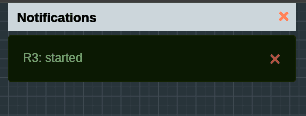
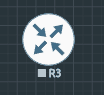
You might see the "Node Started" notification, but the icon never turns ON, and you cannot access it via Telnet or HTML console.
I encountered this specifically while trying to run Cisco IOL (IOS on Linux) images. Unlike other images, EVE-NG does not provide the license for IOL automatically. You must generate a license key that matches your specific EVE-NG installation's hostname.
Here is the step-by-step fix:
1. SSH into your EVE-NG Server
Open your terminal (or PuTTY) and log in to your EVE-NG CLI as root.
2. Navigate to the IOL Binary Folder
Move to the specific directory where IOL images and license files are stored:
Bash
cd /opt/unetlab/addons/iol/bin/3. Create the License Generator Script
Since we need a unique key based on your VM's ID, we will create a small Python script. Run the following command to create a new file:
Bash
nano CiscoIOUKeygen.pyPaste this Python code into the editor:
Python
import os
import socket

# Get HostID and Hostname
hostid = os.popen("hostid").read().strip()
hostname = socket.gethostname()

# Convert hex hostid to integer
ioukey = int(hostid, 16)

# Key calculation logic
for x in range(1, len(hostname) + 1):
    ioukey = ioukey ^ ord(hostname[x - 1])
    ioukey = ioukey ^ (ioukey << 8)

# Mask to 32-bit to prevent "int too large" errors
ioukey &= 0xFFFFFFFF
iouLicense = "%016x" % ioukey
iouLicense = iouLicense[8:]

print("\n*********************************************************************")
print("Create the file /opt/unetlab/addons/iol/bin/iourc with this content:")
print("\n[license]")
print(f"{hostname} = {iouLicense};")
print("\n*********************************************************************")
Press Ctrl+O, Enter to save, and Ctrl+X to exit.
4. Generate Your License Key
Run the script using Python 3:
Bash
python3 CiscoIOUKeygen.pyThe script will output a block of text. Copy the line that looks like your-hostname = 0123456789abcdef;.
I got something like :
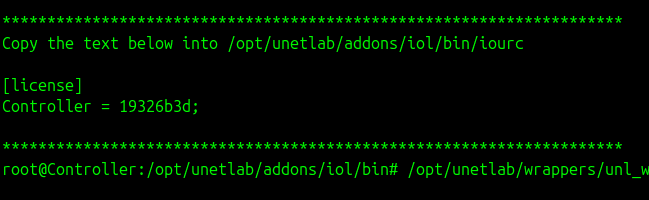
5. Create the iourc License File
Now, you need to save that key into a file named iourc in the same directory (Check the DIR — I made a mistake here):
Bash
nano iourcPaste the output from the script (including the [license] header). It should look like this:
Plaintext
[license]
Controller = 0123456789abcdef;
[!NOTE] Don't forget the ; I made mistake here.
6. The Final Step: Fix Permissions
EVE-NG is very strict about file permissions. Even with a valid license, the node won't start if the permissions aren't synced. Run this command to finalize everything:
Bash
/opt/unetlab/wrappers/unl_wrapper -a fixpermissionsConclusion
Restart the Node.
Go back to your EVE-NG web interface and start your node. It should now turn blue and stay running! You can now right-click and open the console to start configuring your Cisco device.