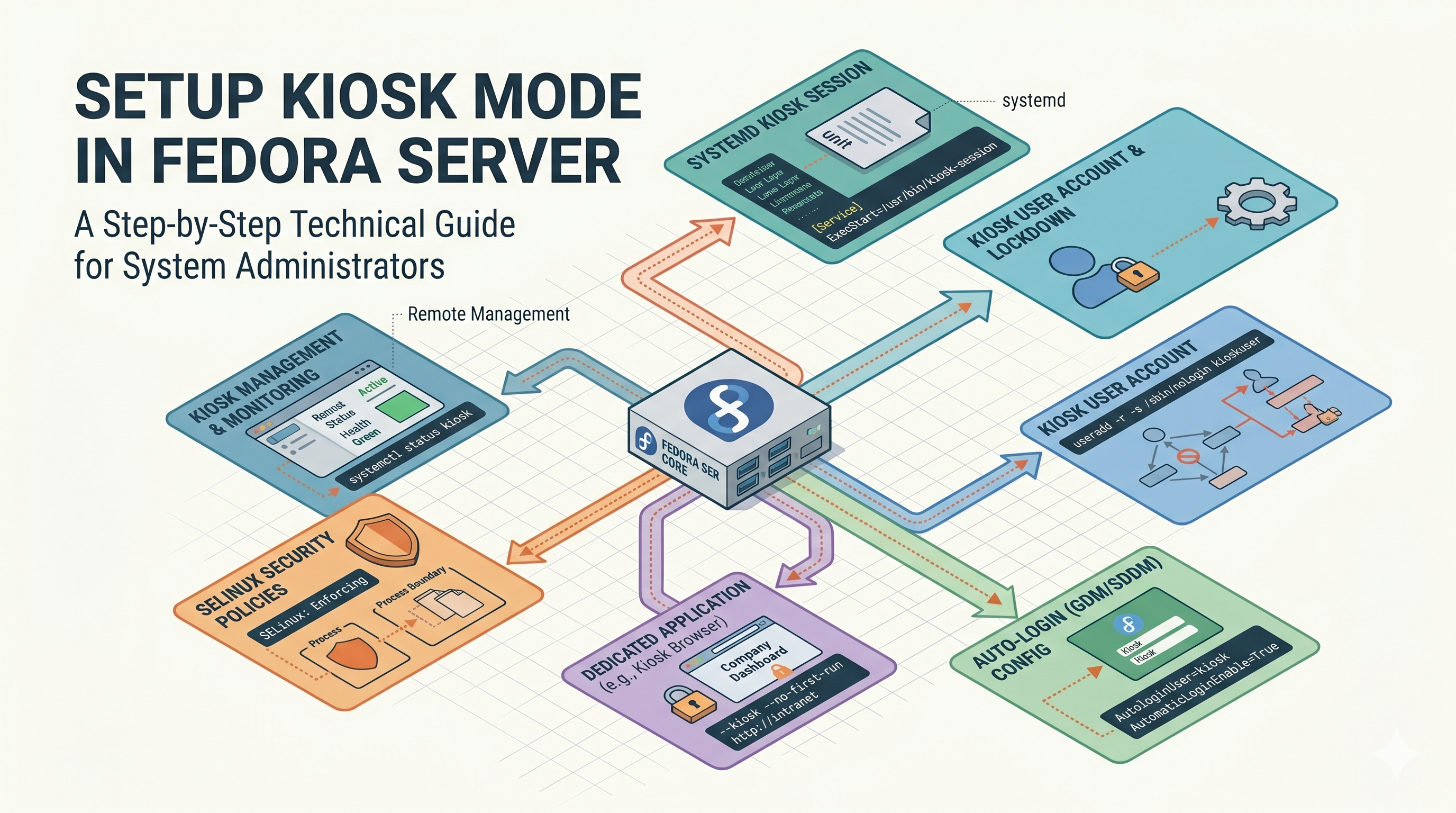
Setting up a dedicated kiosk machine can be incredibly useful for digital signage, dashboards, or single-purpose workstations. In this guide, we'll walk through deploying a self-contained "Kiosk Mode" on Fedora Server.
We are going to use Openbox as a lightweight window manager and Chromium as the display browser. To make the deployment easy, I've written a complete bash script that automates the entire process.
The Kiosk Mode Setup Script
Here is the complete script. You can save this to a file on your Fedora Server, make it executable, and run it as root. It handles everything from user creation to systemd service configuration.
#!/bin/bash

# ==========================================
# Fedora Kiosk Setup Script (Final Version)
# ==========================================

# 1. FAIL-SAFE: Ensure script is run as root
if [ "$EUID" -ne 0 ]; then
  echo "❌ Error: Please run this script as root using sudo."
  exit 1
fi

echo "=========================================="
echo " Starting Kiosk Mode Setup for Fedora "
echo "=========================================="

# 2. INTERACTIVE: Confirm or change variables
KIOSK_USER="kioskuser"
KIOSK_UID=1001
TARGET_URL="http://appli.lan:3000/"

echo ""
read -p "The default target URL is set to '$TARGET_URL'. Do you want to change it? (y/N): " change_url
if [[ "$change_url" =~ ^[Yy]$ ]]; then
    read -p "Enter the new URL (e.g., http://example.com): " TARGET_URL
fi
echo "✅ Target URL locked in as: $TARGET_URL"
echo ""

# 3. FAIL-SAFE & SETUP: User Creation
echo "Step 1: Checking user '$KIOSK_USER'..."
if id "$KIOSK_USER" &>/dev/null; then
    echo "⚠️ User $KIOSK_USER already exists. Skipping creation."
else
    # Check if UID 1001 is already taken by someone else
    if getent passwd "$KIOSK_UID" > /dev/null; then
        echo "❌ Error: UID $KIOSK_UID is already in use by another user on this system."
        exit 1
    fi

    echo "Creating user $KIOSK_USER with UID $KIOSK_UID..."
    useradd -m -u "$KIOSK_UID" -s /bin/bash "$KIOSK_USER" || { echo "❌ Error: Failed to create user. Exiting."; exit 1; }
    echo "✅ User created successfully."
fi
echo ""

# 4. FAIL-SAFE & SETUP: Install Dependencies
echo "Step 2: Installing required packages..."
read -p "Ready to install packages via dnf? (Y/n): " proceed_install
if [[ ! "$proceed_install" =~ ^[Nn]$ ]]; then
    # Using xset instead of xorg-x11-server-utils for Fedora 43+
    dnf install -y xorg-x11-server-Xorg xset xorg-x11-xinit openbox chromium

    if [ $? -ne 0 ]; then
        echo "❌ Error: Package installation failed."
        exit 1
    fi
    echo "✅ Packages installed successfully."
else
    echo "⚠️ Skipping package installation."
fi
echo ""

# 5. SETUP: Fix X Server Permissions for Systemd & Disable Mouse
echo "Step 3: Configuring X server permissions and disabling mouse clicks..."
mkdir -p /etc/X11
echo "allowed_users=anybody" > /etc/X11/Xwrapper.config
echo "needs_root_rights=yes" >> /etc/X11/Xwrapper.config
echo "✅ Xwrapper configured to allow non-console users."

# Prevent users from clicking by ignoring pointer inputs
mkdir -p /etc/X11/xorg.conf.d
cat <<'EOF' > /etc/X11/xorg.conf.d/99-disable-pointer.conf
Section "InputClass"
    Identifier "Disable all pointers"
    MatchIsPointer "on"
    Option "Ignore" "on"
EndSection
EOF
echo "✅ Mouse inputs disabled globally in Xorg to prevent link clicking."
echo ""

# 6. SETUP: Configuring the Kiosk Environment
echo "Step 4: Configuring Openbox and Chromium..."
mkdir -p /home/$KIOSK_USER/.config/openbox

# Create Openbox autostart script (Using chromium-browser)
cat <<EOF > /home/$KIOSK_USER/.config/openbox/autostart
# Disable screen blanking and power saving
xset s off
xset s noblank
xset -dpms

# Start Chromium in kiosk mode
chromium-browser --kiosk --no-first-run --disable-infobars --disable-features=TranslateUI --window-position=0,0 --window-size=1920,1080 "$TARGET_URL" &
EOF

# Create .xinitrc
echo "exec openbox-session" > /home/$KIOSK_USER/.xinitrc

# Fix permissions
chown -R $KIOSK_USER:$KIOSK_USER /home/$KIOSK_USER/.config /home/$KIOSK_USER/.xinitrc || { echo "❌ Error: Failed to set permissions."; exit 1; }
echo "✅ Configuration files generated and permissions set."
echo ""

# 7. SETUP: Systemd Service
echo "Step 5: Creating systemd service..."
cat <<EOF > /etc/systemd/system/kiosk.service
[Unit]
Description=Start X and Chromium in Kiosk Mode
After=network.target network-online.target systemd-user-sessions.service

[Service]
User=$KIOSK_USER
Environment=DISPLAY=:0
ExecStart=/usr/bin/startx /home/$KIOSK_USER/.xinitrc -- -nocursor
Restart=always
RestartSec=3

[Install]
WantedBy=multi-user.target
EOF

# Reload daemon and enable
systemctl daemon-reload
systemctl enable kiosk.service || { echo "❌ Error: Failed to enable systemd service."; exit 1; }
echo "✅ Systemd service created and enabled."
echo ""

# 8. INTERACTIVE: Final Action
echo "=========================================="
echo " Setup Complete! "
echo "=========================================="
read -p "Do you want to start the kiosk service right now? (Y/n): " start_now
if [[ ! "$start_now" =~ ^[Nn]$ ]]; then
    echo "Starting kiosk service..."
    systemctl restart kiosk.service

    sleep 2
    if systemctl is-active --quiet kiosk.service; then
        echo "✅ Kiosk is running! The website should be on your screen."
    else
        echo "⚠️ Kiosk service failed to start. Run 'sudo journalctl -u kiosk.service -n 50' to check logs."
    fi
else
    echo "✅ Kiosk service is enabled and will start automatically on the next reboot."
fi
Phase 1: Requirements and Preparation
Before running the script, ensure you are operating on a Fedora Server instance. The script will request root privileges since it modifies system-level configurations and installs packages.
- Transfer the script onto your target machine (e.g., as
setup-kiosk.sh). - Make it executable:
chmod +x setup-kiosk.sh - Run the script using
sudo:sudo ./setup-kiosk.sh
Phase 2: What the Script Does
Here's a breakdown of the phases the script automates under the hood:
1. User Creation
It generates a dedicated unprivileged user (kioskuser with UID 1001) that runs the graphical session and browser, separating kiosk tasks from regular admin functions.
2. Dependency Installation
The script installs everything required to bootstrap a minimal X server:
xorg-x11-server-Xorgandxorg-x11-xinitfor handling the display.xsetlogic to disable power saving and screensavers.openboxas a barebones window manager.chromiumfor the web presence.
3. Xwrapper & Disabled Mouse Configuration
By default, X runs only through active console users. The script adjusts /etc/X11/Xwrapper.config and specifies allowed_users=anybody and needs_root_rights=yes so a systemd service can cleanly spawn the environment without logging in at the terminal.
Furthermore, it writes a custom snippet to /etc/X11/xorg.conf.d/99-disable-pointer.conf instructing the X window system to ignore all pointer (mouse/touch) inputs. This permanently locks down the interface and safely guarantees that users cannot randomly click on any links!
4. Autostarting Chromium
Openbox handles window management and will run elements documented inside ~/.config/openbox/autostart. The script populates this with tasks to:
- Suppress screen blanks using
xset s offandxset -dpms. - Start Chromium mapped directly into kiosk mode, ignoring popups, translation prompts, and initial setup wizards.
5. Creating the Systemd Service
To ensure this runs perfectly after every reboot, it creates a dedicated kiosk.service. The service binds to the kioskuser account, keeps the cursor hidden (-nocursor), and instructs the daemon to persistently auto-restart if it ever crashes.
Phase 3: Final Launch and Usage
At the end of the execution, the script will let you define a target URL. By default, it uses http://appli.lan:3000/. You can specify your dashboard endpoint.
Once validated, it prompts to activate the systemd service right then and there.
Should you need to override the URL again later, simply adjust the target address inside /home/kioskuser/.config/openbox/autostart and restart the core service with:
sudo systemctl restart kiosk.service